

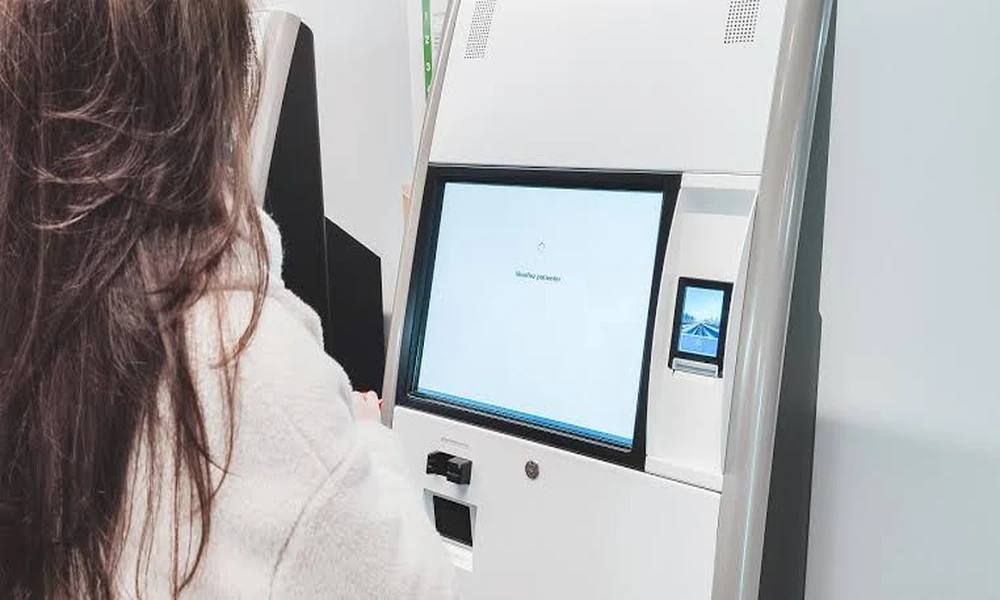
A self-service kiosk is only as good as its connection. When the network drops, the screen may still glow, but orders stop, payments fail, and customers walk away.
Retailers searching for answers usually want to know why their kiosks keep going offline and what actually fixes it. Providers such as https://idmwireless.com/commercial-retail/kiosks/ focus on this exact problem, because downtime at a kiosk means lost sales.
Most connectivity problems aren’t random. They come from setups that were never planned for real store conditions.
A Planned Setup Beats Quick Fixes
Restarting a frozen kiosk solves the moment, not the cause. A planned approach prevents repeat failures.
- Give kiosks their own connection, separate from guest Wi-Fi.
- Add a backup link in case the main one fails.
- Monitor every unit remotely.
- Make sure staff can reboot devices without a site visit.
- Check signal strength before installation.
Separating Kiosk Traffic
Many stores run kiosks on the same Wi-Fi as staff laptops, music systems, and guest phones. At busy times, the network slows and kiosks time out.
A dedicated connection, often a cellular router, keeps kiosk traffic separate. The limitation is cost, since each separate connection adds a monthly data plan.
Adding Failover
Failover means a second connection takes over automatically when the first one drops. A kiosk might run on wired internet with 4G LTE as backup.
In practice, customers rarely notice the switch. The difficulty is setup, because both links must be configured and tested properly.
Monitoring and Remote Reboot
Remote monitoring shows which kiosks are online, how strong their signal is, and how much data they use. Some managed services, such as those described at https://idmwireless.com/commercial-retail/kiosks/, also let teams reboot a kiosk remotely, even when its software has frozen.
This saves technician trips. The limitation is that physical faults, like a damaged screen, still need someone on site.
A Practical Fix Plan
- List every kiosk and how it connects.
- Note which units drop offline most often.
- Test signal strength at each location.
- Move kiosks to a dedicated or backup connection.
- Set up monitoring alerts.
- Review uptime monthly.
Where Retailers Go Wrong
Common mistakes include relying on guest Wi-Fi, ignoring weak signal areas, and waiting for staff complaints before acting.
Conditions also change. New shelving, store renovations, or nearby construction can weaken signals that were fine before.
Improving Uptime over Time
Track downtime for each kiosk every month. Look for patterns by location, time of day, or device. Small adjustments, made consistently, raise reliability more than one big upgrade.
Frequently Asked Questions
Why do kiosks disconnect at busy times?
Shared networks often slow down when many devices connect.
Is cellular better than Wi-Fi for kiosks?
It’s often more stable, since kiosk traffic isn’t competing with other devices.
What is failover?
A backup connection that takes over automatically.
Can kiosks be rebooted remotely?
With the right equipment and management tools, yes.
No network is perfect. Reliable kiosks come from steady habits: separate connections, backup links, and regular checks. Keep reviewing and adjusting, and downtime will keep shrinking.